Not every photo gives the same result when turned into a paint-by-number picture. The Color Memories generator adapts to any image, but there are a few simple rules that make the difference between a picture that truly looks like the memory and a confusing one.
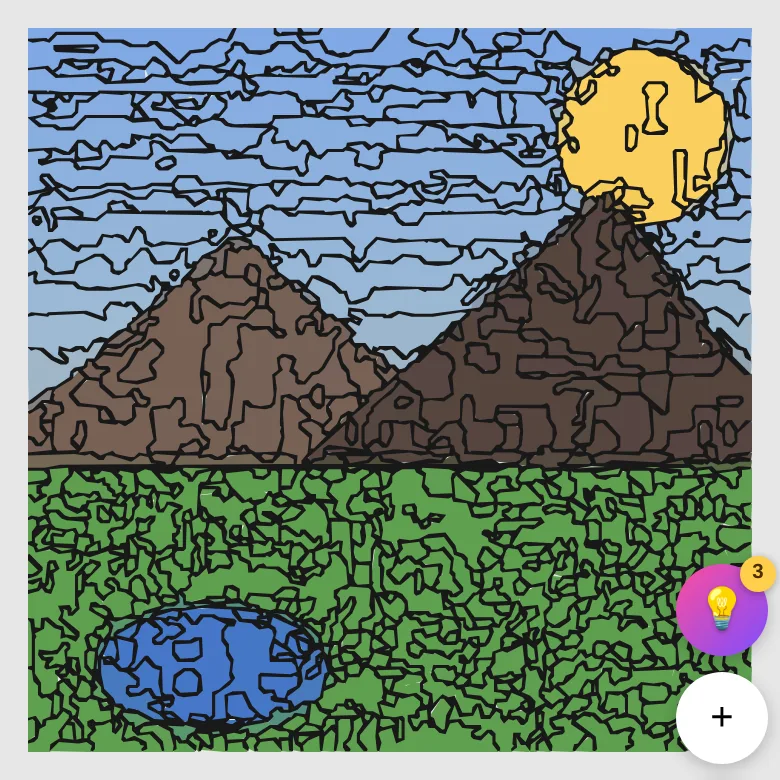
1. A clear, central subject
Photos with a well-defined subject — a face, a pet, a central object — work much better than compositions with lots of small elements scattered across the image. Portraits, close-ups of pets, and landscapes with a marked horizon give the best results.
2. Good light, little backlight
Even lighting helps the algorithm separate color zones cleanly. Avoid very dark photos, strong backlighting, or hard shadows that cut across the subject's face or body: in the final picture these turn into unnaturally dark, flat zones.
3. A simple background (when possible)
A blurred or evenly colored background lets the detail concentrate on the subject. If the background is very detailed (a busy street, a dense forest), the picture will have many more small zones and will be harder to paint, though it's still doable at the Hard or Expert levels.
4. Choose difficulty based on the photo
- Easy (~40 colors): ideal for simple photos, or for painting with kids.
- Medium (~60 colors): the recommended balance for most portraits and pets.
- Hard (~80 colors): photos with more nuance in light and color.
- Expert (~100 colors, 1,300+ zones): maximum fidelity, for anyone who wants the challenge and the truest likeness.
The more colors, the closer the result looks to the original photo, but also the more zones there are to paint. If it's your first time, start with Medium.
5. Your memories, not stock photos
The whole point of paint by number with your own photos is exactly that: a trip, a pet, a family moment. Every picture is unique because the photo is. And your original photo is never stored on the servers: it's only processed to generate the picture and saved solely on your device.
Concrete cases: what to expect from each type of photo
After seeing thousands of generated pictures, these are the patterns that keep repeating by photo type:
- Portrait of one person (bust or face): the star case. Skin creates large, pleasant zones to paint, and the eyes and mouth carry the detail. Tip: crop the photo so the face takes up at least a third of the frame; if the person is full-body and far away, the face ends up as four zones and loses its likeness.
- Two people together: works well if they're close to each other and take up most of the frame (a couple's selfie, a hug). If there's air between them, crop it.
- Groups of 3 or more: the most demanding case. Each face gets few zones, so individual likeness drops. If the group matters, use Expert and a photo where faces show up large; otherwise, better to pick a photo with fewer people.
- Dogs and cats: generally excellent. Textured fur (tabby patterns, spots) looks especially good at Hard/Expert. Watch out for dark-colored pets: in dark photos the coat can come out as a single blob — look for a photo with side lighting that "draws" the animal's volume.
- Landscapes and sunsets: very rewarding if there's an element anchoring the composition (a tree, a silhouette, the horizon). Sky gradients are some of the most satisfying things to paint at high levels.
- Food, flowers and objects: surprisingly good and quick to paint; they tend to come out looking like recipe-book illustrations. Great at Easy/Medium.
- Old scanned or black-and-white photos: they work — the picture will come out in the photo's range of grays/sepias. Scan grain can add small noise zones; if the photo is badly damaged, a restored version is better.
- Screenshots, memes, text: technically they'll generate, but small text becomes illegible once posterized. Not their strong suit.
The 10-second test before you decide
A quick trick to know if a photo will work without generating anything: squint until the photo goes blurry. If, squinting, you can still tell what it is (the dog's silhouette, the face, the mountain), the algorithm will be able to too: there's enough contrast and structure. If squinting turns the photo into a uniform mush, the picture will come out confusing. It's literally a homemade version of what the generator does: keep the dominant shapes and colors and discard the fine detail — we explain the technical reason why in how it works under the hood.
And if the photo isn't perfect… crop it
The most underrated tool is pre-cropping (which the app itself offers when you upload a photo). 80% of "bad" photos for paint by number are actually good photos with too much empty space around the subject. Cropping until the subject dominates the frame transforms the result more than any difficulty adjustment. You can also rotate it there if it came out tilted.
Choose my photo and create the picture →