Paint by number no longer means buying a pre-designed kit with generic motifs: today you can turn any photo of your own — a portrait, your pet, a trip — into a numbered picture and paint it by tapping the screen, with no install and no drawing skills needed. Here's how it works with Color Memories.
1. Pick a photo with good light and a clear subject
The result depends mostly on the source photo. Look for images with a well-defined subject and even lighting: portraits, pets, or landscapes with a clear horizon work better than dark or overly detailed photos. More on this with examples in which photos work best for paint by number.
2. Upload the photo and choose a difficulty
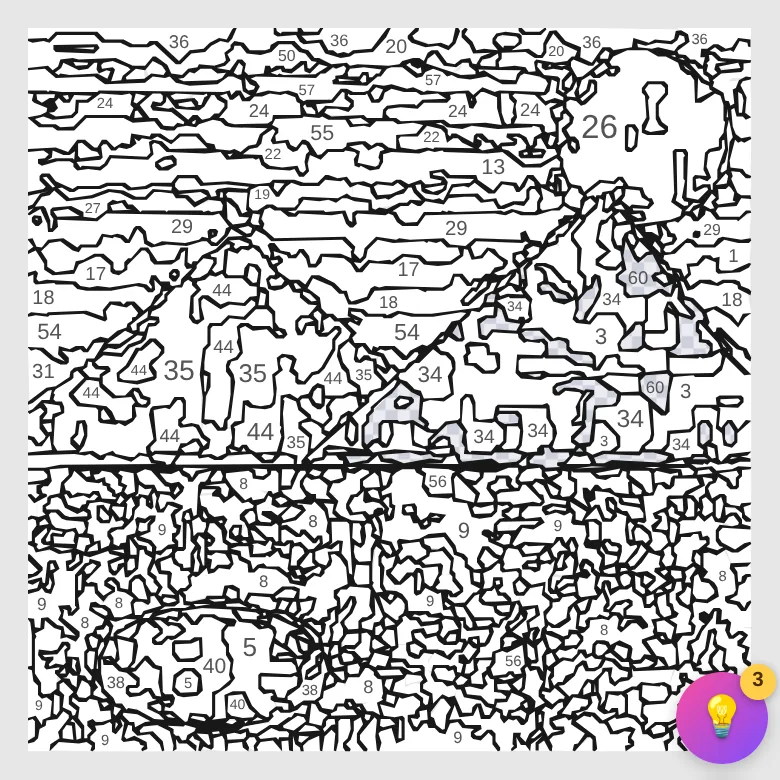
Upload the photo from your gallery or take it on the spot. The generator analyzes it and turns it into numbered zones, each tied to a color. You can pick from four levels — Easy, Medium, Hard and Expert — from around 300 zones up to more than 1,300 at Expert, to adjust how much detail and time you want to put in.
3. Paint by tapping each number
Once the picture is generated, you just tap each numbered zone with its matching color. The app tracks your progress automatically, and you can pause and resume whenever you like: your work is saved so you can continue at any time.
4. Share the timelapse
When you finish, Color Memories generates a timelapse of how your picture was painted, color by color, ready to download or share. It's a lot of people's favorite part: watching the memory come back to life in a few seconds of video.
Do I need to install anything?
No. The whole process happens in the browser, on both mobile and desktop. If you want quick access, you can install it as an app straight from the browser (PWA) without going through any app store.
Is it free?
You can create your first picture with no account. With a free account, your creations are saved and synced across devices, with unlimited pictures.
Tips for your first picture (the typical mistakes, solved)
These are the most common first-time snags, and how to avoid them:
- "It came out with too many tiny zones." This usually means the photo had a very detailed background or the subject was small in the frame. Crop more aggressively and generate again — you can regenerate the same photo as many times as you want.
- "It doesn't look like the photo." This is almost always a difficulty issue: Easy has few colors, so subtle tones get lost. Try the same photo on Hard or Expert; the difference in portraits is noticeable. There's a full difficulty guide.
- "I can't find the last zone of a color." That's what hints are for: they center your view on a pending zone of the selected color. And zoom: the smallest zones need you to get closer.
- "I want to paint offline." Once generated, the picture lives on your device: you can paint it on the subway or on a plane with no signal. You only need a connection to generate new pictures and to sync.
What happens to your photo (privacy)
When the picture is generated, the photo is processed and then discarded: the original image is saved only on your device, never on our servers, and it's excluded from sync between devices, precisely for privacy. What syncs with your account is the numbered picture and your painting progress. Details are in the privacy policy.
From digital picture to the physical world
Even though Color Memories is digital from start to finish, the result doesn't have to stay on the screen: once you're done you can download your creation as a high-resolution image. Some people print it and frame it next to the original photo (the framed "before and after" looks surprisingly good), some use it as wallpaper, and some share the timelapse on social media or in the family group chat. The picture is yours: the downloaded image has no watermarks.
Convert my photo now →